
What Is an Urdu Phonetic Keyboard?
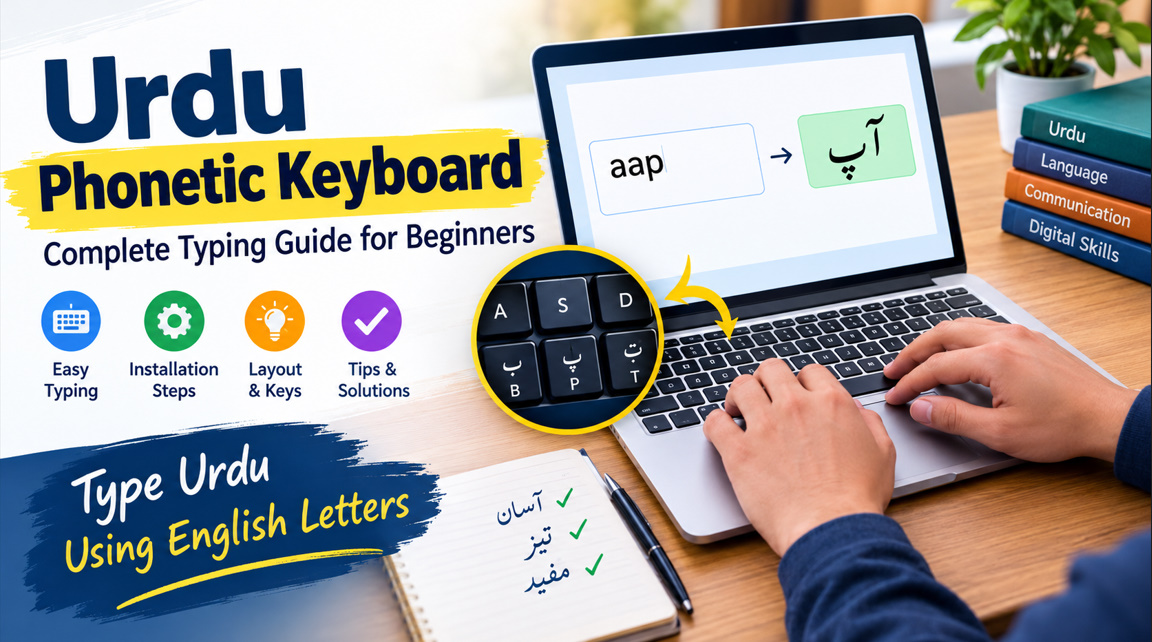
An Urdu phonetic keyboard is a typing tool that allows users to write Urdu using familiar English keyboard keys. Instead of memorizing a traditional Urdu keyboard layout, you type letters according to their sounds. For example, typing “aap” may produce “آپ,” depending on the keyboard layout and input method.
This keyboard is especially useful for beginners, students, bloggers, teachers, and professionals who want to create Urdu content digitally. An Urdu phonetic typing tool makes it easier to write messages, documents, articles, and social media posts in the Urdu language without learning an entirely new keyboard arrangement.
- Easy Urdu typing for beginners
- Familiar English keyboard layout
- Sound-based Urdu character mapping
- Faster Urdu text composition
- Useful for students and teachers
- Suitable for everyday communication
- Supports Urdu content creation
- Reduces traditional layout memorization
How Does Urdu Phonetic Typing Work?
Urdu phonetic typing works by connecting English keyboard inputs with corresponding Urdu letters. When you press a key or type a familiar sound combination, the input method converts it into Urdu script. For instance, typing “salam” may produce “سلام” when the selected keyboard follows the expected phonetic mapping.
However, exact character mappings can differ between keyboard layouts and software applications. Some tools use direct letter-to-letter conversion, while others offer suggestions or alternative characters. Understanding your selected layout helps you type accurately, recognize special Urdu sounds, and improve your overall Urdu typing speed.
- Type using familiar English keys
- Convert sounds into Urdu letters
- Learn common phonetic combinations
- Check the active keyboard layout
- Use suggestions when available
- Practice frequently used Urdu words
- Correct spelling before publishing
- Review punctuation and spacing
How to Set Up an Urdu Phonetic Keyboard
Setting up an Urdu phonetic keyboard usually involves choosing an input method that supports Urdu phonetic typing. Depending on your device, you may be able to add a keyboard through your operating system, install a compatible typing application, or use a browser-based Urdu typing tool. Always check that the selected option supports phonetic input rather than only a traditional layout.
After installation or activation, switch to the Urdu input language and test a few simple words. If the characters do not match your expectations, check the selected layout and its key mappings. A short practice session can help you become familiar with the keyboard before using it for longer documents or professional writing.
- Choose an Urdu-compatible input method
- Confirm phonetic layout support
- Add the Urdu keyboard
- Switch to Urdu input mode
- Test common Urdu words
- Review the keyboard mapping
- Adjust language preferences if needed
- Save your preferred settings
Benefits of Using an Urdu Phonetic Keyboard
One of the biggest advantages of an Urdu phonetic keyboard is convenience. People who already know the English keyboard can begin typing Urdu without memorizing the positions of every Urdu character. This makes the tool practical for school assignments, personal messages, business communication, and Urdu-language digital publishing.
Phonetic typing can also support productivity when creating longer Urdu documents. Bloggers can draft articles, students can prepare notes, and office workers can write Urdu reports using familiar typing habits. Although speed improves with practice, accurate spelling, appropriate word choice, and correct character selection remain essential for producing clear, professional Urdu text.
- Simplifies the learning process
- Makes Urdu typing more accessible
- Supports faster writing with practice
- Helps create Urdu documents
- Improves digital communication
- Assists Urdu-language bloggers
- Reduces dependence on memorized layouts
- Supports everyday writing tasks
Urdu Phonetic Keyboard for Windows, Mac, and Mobile
An Urdu phonetic keyboard can be used on different devices, but the setup process depends on the operating system and available input tools. Windows users can explore compatible Urdu language and keyboard settings, while Mac users should check the available Urdu input sources and determine whether a phonetic layout is supported. Not every built-in Urdu keyboard uses phonetic mapping.
On smartphones and tablets, users can look for a keyboard application that explicitly supports Urdu phonetic typing. A browser-based Urdu typing tool may also be useful when installing software is inconvenient. Before choosing any solution, check language support, privacy settings, compatibility, and whether Urdu text displays correctly in your preferred applications.
- Windows Urdu keyboard options
- Mac Urdu input sources
- Android Urdu keyboard applications
- iPhone and iPad language settings
- Browser-based Urdu typing tools
- Device-specific keyboard preferences
- Urdu text display compatibility
- Application language support
Common Urdu Phonetic Keyboard Shortcuts and Typing Tips
Learning frequently used keys and character combinations can make Urdu phonetic typing more comfortable. Start with everyday words, greetings, names, and short sentences. Pay attention to characters that sound similar but are written differently in Urdu, because phonetic input does not always determine the intended spelling automatically.
It is also helpful to learn how your keyboard handles punctuation, spaces, diacritical marks, and alternative characters. Some input methods provide special key combinations or suggestions for less common Urdu letters. Consult the layout guide for your specific tool rather than assuming that every Urdu phonetic keyboard uses identical shortcuts.
- Practice common Urdu greetings
- Learn frequently used character combinations
- Check mappings for similar sounds
- Explore available keyboard shortcuts
- Use suggestions for alternative letters
- Review punctuation placement
- Practice names and difficult words
- Build accuracy before increasing speed
Common Urdu Phonetic Keyboard Problems and Solutions
Occasionally, an Urdu phonetic keyboard may produce unexpected characters, stop responding, or display Urdu text incorrectly. These issues can result from an inactive input language, an incompatible keyboard layout, application settings, or font and text-rendering problems. Start by confirming that Urdu input is enabled and that the intended phonetic layout is selected.
If Urdu characters appear separated incorrectly or display as boxes, check the application’s Urdu and Unicode support. Restarting the application or reviewing language settings may resolve some input issues. For persistent problems, consult the keyboard provider’s documentation and test the same text in another compatible application to identify where the problem occurs.
- Verify the active input language
- Check the selected keyboard layout
- Restart the affected application
- Review operating system language settings
- Test another compatible text editor
- Check Urdu font support
- Update the keyboard application if needed
- Confirm Unicode text compatibility
Best Practices for Accurate Urdu Phonetic Typing
Consistent practice is one of the most effective ways to improve Urdu phonetic typing. Begin with short sentences and gradually progress to paragraphs, articles, and formal documents. Read what you type, compare unfamiliar words with reliable Urdu references, and correct spelling mistakes before sharing your work. This approach improves both typing confidence and written communication.
For bloggers, students, and professionals, readability should be a priority alongside speed. Use clear sentence structure, appropriate punctuation, and consistent Urdu spelling. When publishing online, verify that the text remains readable across mobile devices and desktop screens. These practices help ensure that Urdu content is accessible, searchable, and useful to its intended audience.
- Practice typing every day
- Read text while proofreading
- Verify difficult Urdu spellings
- Use consistent writing conventions
- Check punctuation and spacing
- Test text on different devices
- Prioritize clarity over speed
- Proofread before publishing